AsCOLA
AsCOLA is a European-wide project aimed at digitalizing and enhancing the quality framework of Erasmus+ student mobility.
By developing an evaluation methodology and an online evaluation tool for courses offered to mobile students, the project aims to equip Higher Education Institutions (HEIs) with the necessary tools to improve the learning experience of students.
- About
- For students
- How to log in to the course evaluation platform
- How to navigate the tool
- How to provide feedback about your OLA courses (create, edit and delete evaluations)
- For staff
- For developers/ service providers
- Frequently Asked Questions
About
AsCOLA - Assessing Courses of the Online Learning Agreement is an Erasmus+ KA2 project aimed at developing a tool for students to evaluate courses taken on mobility, thereby influencing quality assessment processes of universities and ultimately impacting the quality of academic offer for mobility students. To achieve this ambitious goal, the project counts on the participation of 5 partners with extensive experience in the implementation of Erasmus+ projects: Aristotle University of Thessaloniki (AUTh) as the coordinator, Eötvös Loránd University (ELTE), the Erasmus Student Network (ESN), Risbo B.V. and the European University Foundation (EUF).
EWP Dashboard
The EWP Dashboard is available to all Higher Education Institutions in Europe and was designed specifically for institutions that are currently not using any digital solution to manage their Erasmus mobility management.
It is a free-to-use tool providing you with the basic functionality needed to manage the mobility processes of Erasmus+.
Online Learning Agreement (OLA)
The Online Learning Agreement is a digital solution built by universities and students, with the support of the European Commission, for one of the most important steps of any Erasmus exchange: correctly managing the Learning Agreement, which is a central document to ensure the recognition of ECTS earned abroad.
The Online Learning Agreement was originally developed in 2014 as an internal experiment at the EUF. Its early prototype was very well received by the universities in our network, which decided to share it with the whole HE community.
Over the years the OLA was perfected and thoroughly tested through three consecutive Erasmus+ KA2 Strategic Partnership funded by the Luxembourg National Agency, and today it is becoming the reference implementation for digital Learning Agreements in the context of the 2021-2027 Erasmus programme, as per the European Student Card Initiative.
For students
The AsCOLA course evaluation tool allows Erasmus+ students to assess the courses taken while on mobility. For the time being, course evaluations are only available for students whose Higher Education Institution uses the Online Learning Agreement. For more information, please contact the International Relations Office of your Institution.
How to log in to the course evaluation platform
Go to https://ascola.eu/login. You will be directed to the homepage of the tool where you can log-in.
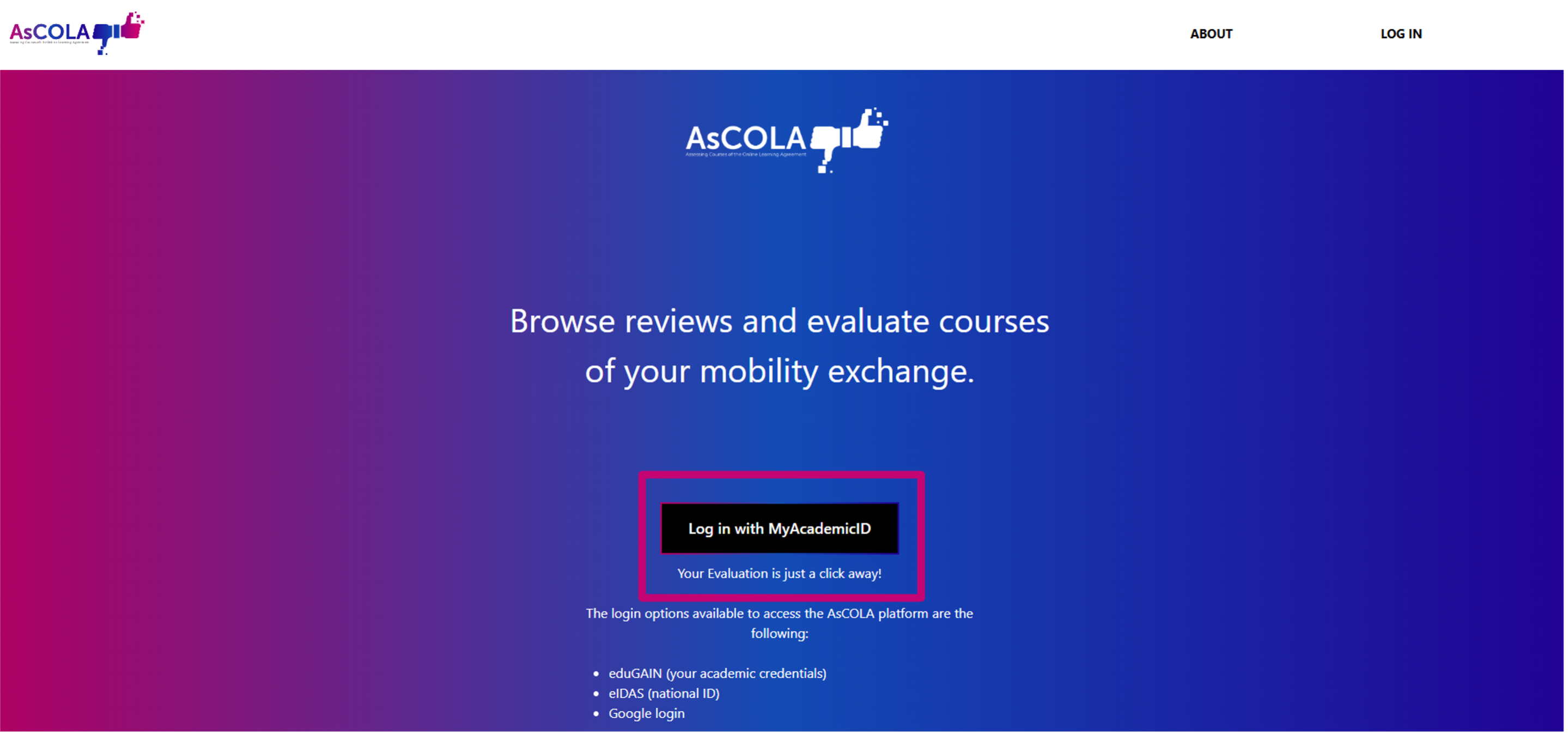
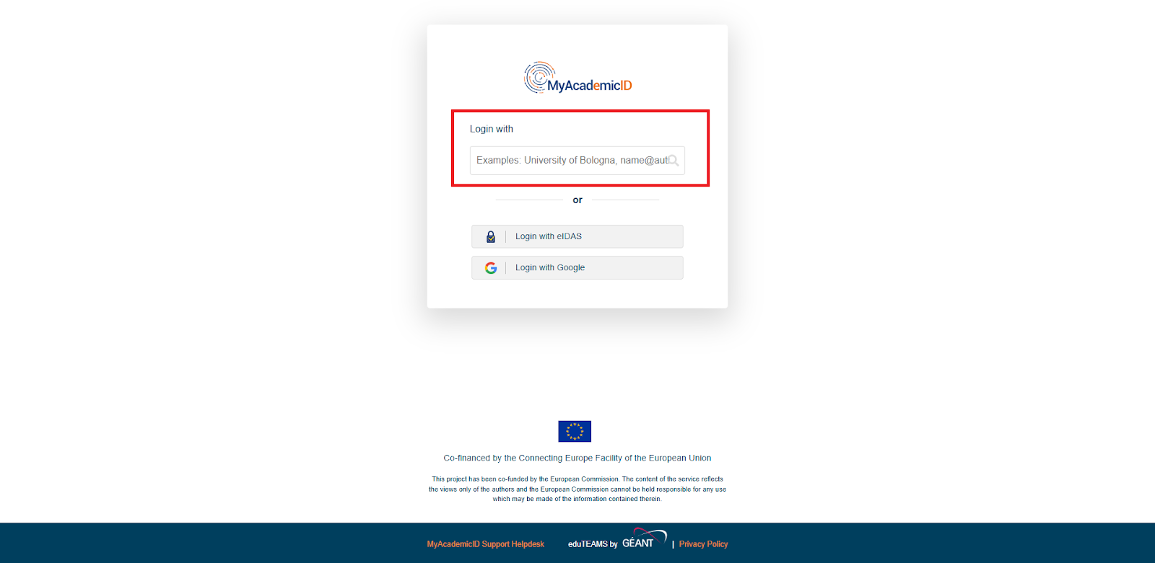
Is it your first time logging in? Log in with your MyAcademic ID or create one by first selecting your Institution and then filling out your login.
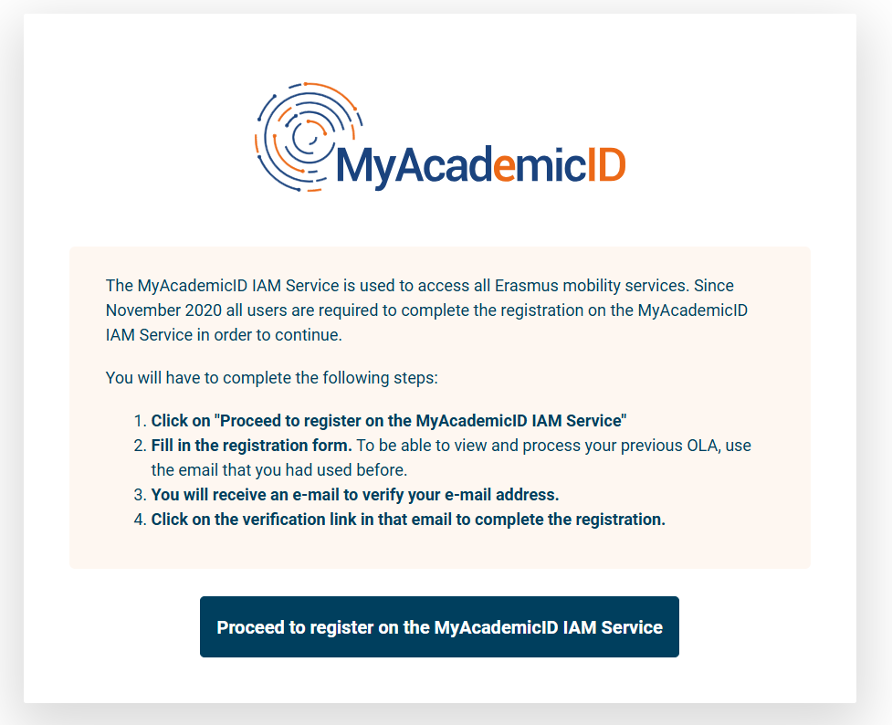
Complete the registration steps as presented on the screen. This includes providing background information about yourself, as part of the registration.
How to navigate the tool
This information requires you to have already logged in the AsCOLA tool. If you haven't yet, please check the section "How to log in"
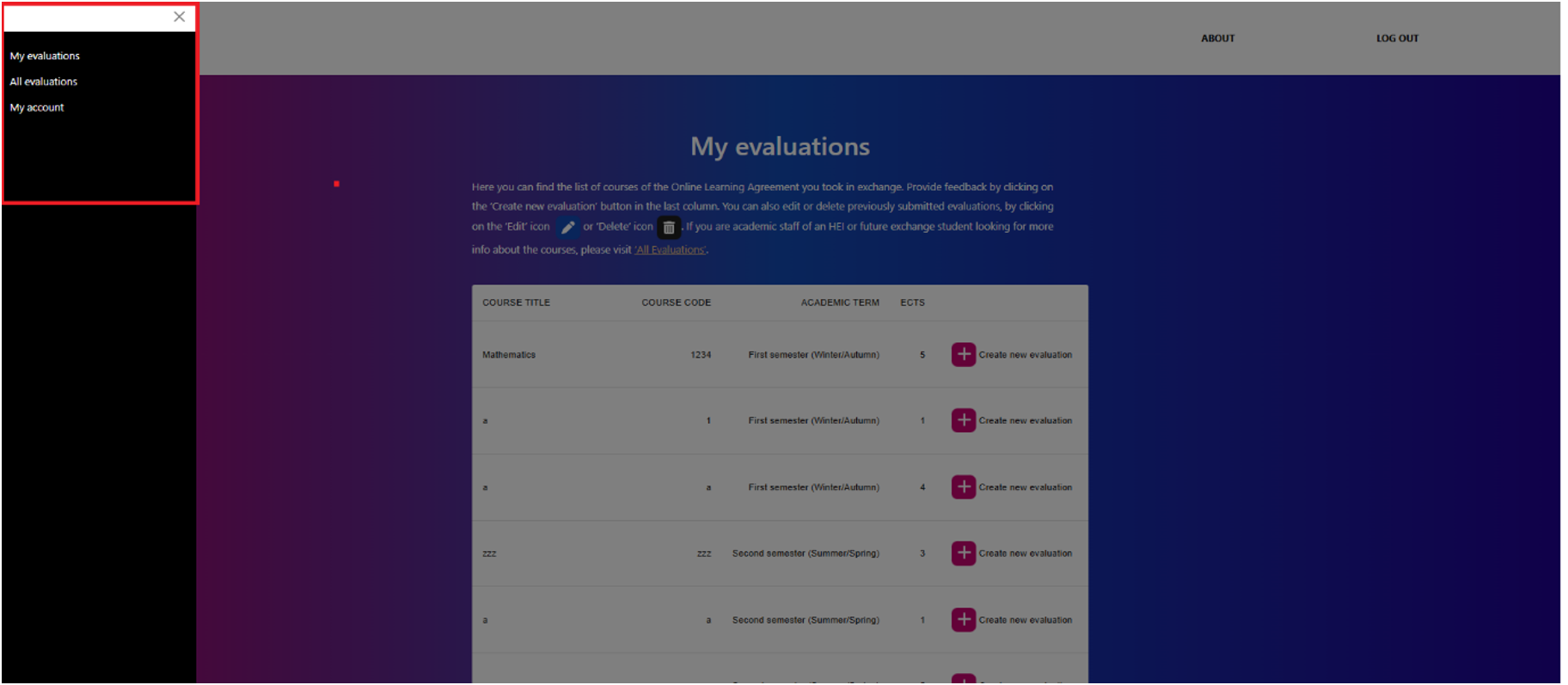
Once you are registered, you’re redirected to ‘My evaluations’. Here you can find the list of courses of your finalized Online Learning Agreement(s).
You can also browse through existing evaluations of exchange courses to help you decide on the courses you want to apply for. Note: only exchange courses from Higher Education Institutions that agreed to display their courses in the tool are visible.
Use the top left menu to switch between:
- Your own evaluations, to create and edit;
- And all evaluations, to browse through evaluations from courses you want to apply for.
How to browse through course evaluations
- In the top left corner, choose “all evaluations”.
- Find specific courses by entering the exact course title or the course code (be sure to switch to ‘search by course code’ using the button below). Note: not all Higher Education Institutions will provide access to their evaluations, it is therefore possible you won’t be able to find certain courses in the list.
Note: Not all HEIs allow their evaluations to be visible through this tool.
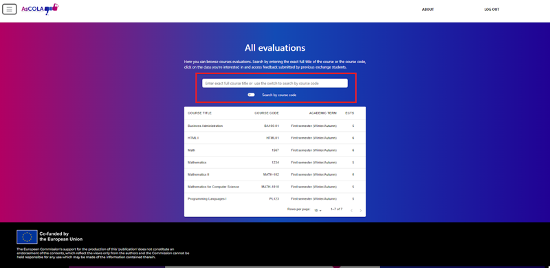
- Select a course you want to view the evaluation data of and click on the course.
- You are now able to see the evaluation results. The evaluation results are presented per theme in a list.
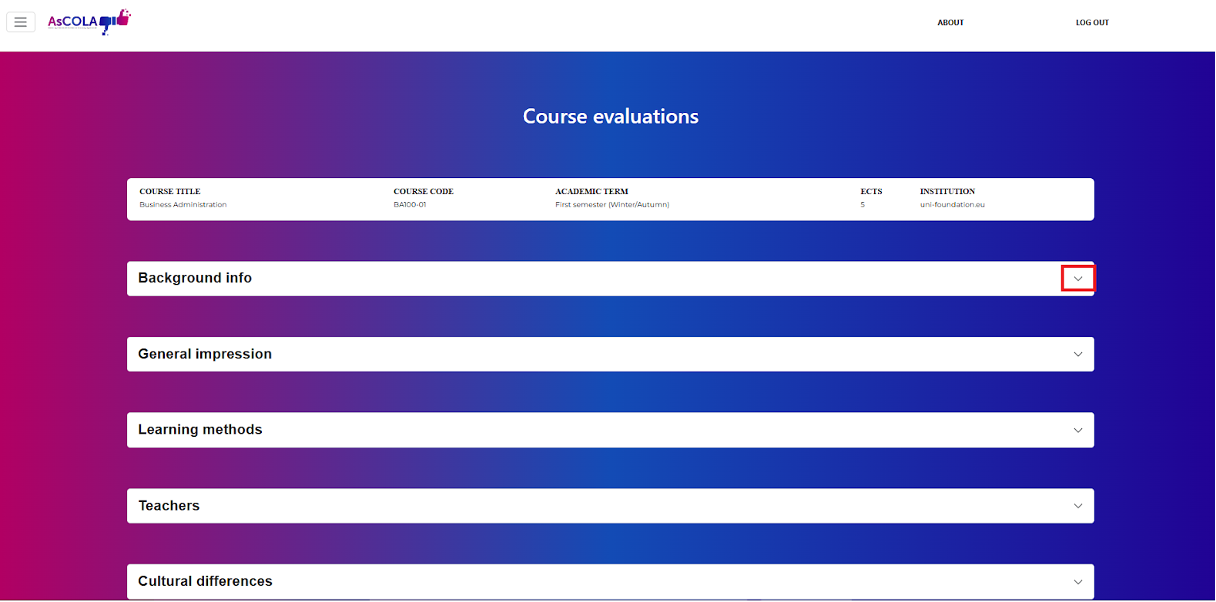
- Click on a theme bar to open the results.
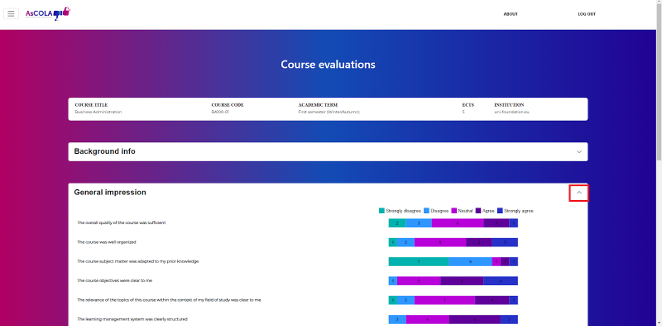
TIP: Be sure to scroll all the way down to not miss anything. - All outcomes per statement, per topic are presented here. Statements are answered with 5 different answer options (see corresponding colors).
- The numbers in the bars show the number of students that chose this answer option.
How to provide feedback about your OLA courses (create, edit and delete evaluations)
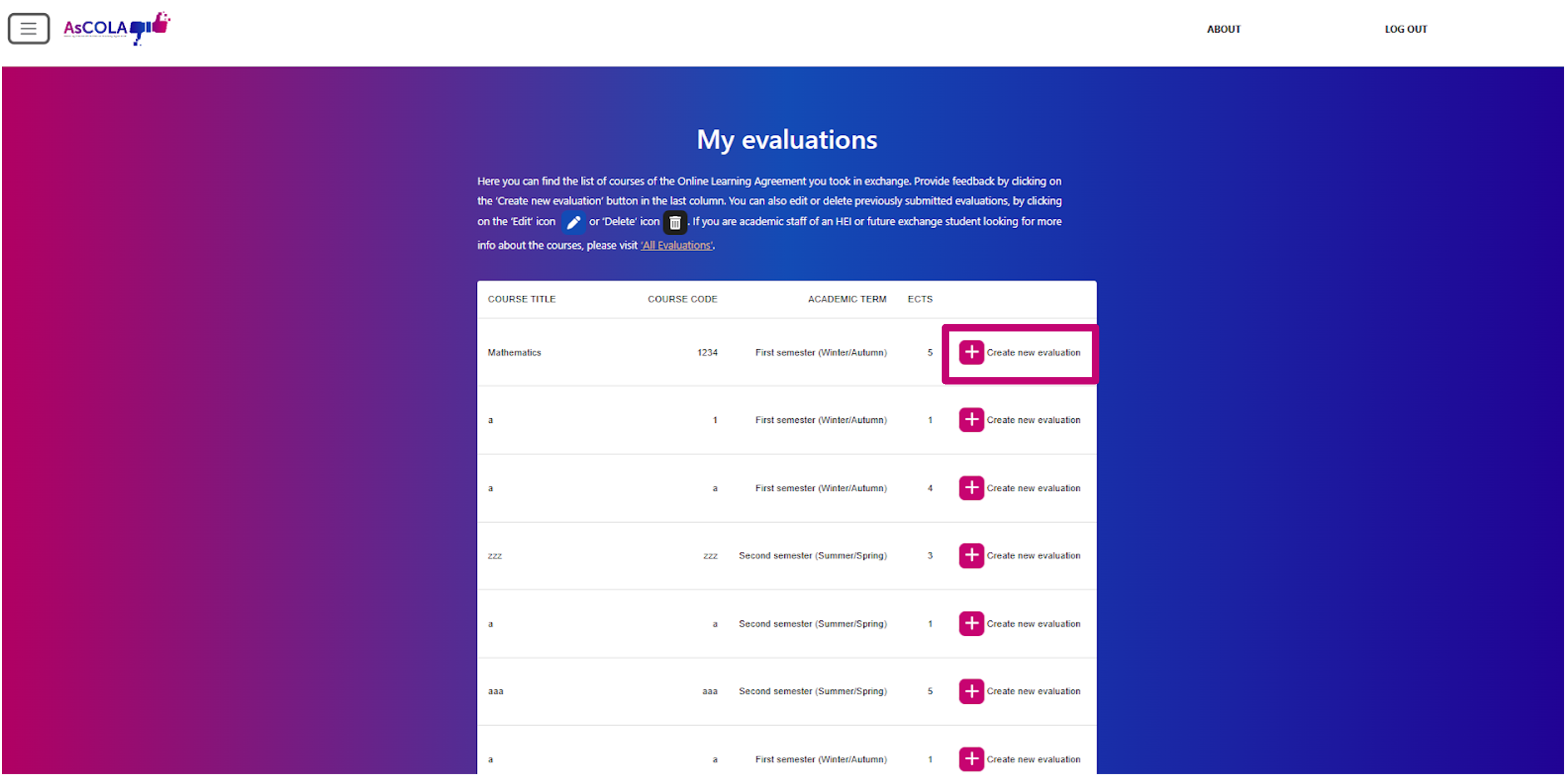
Fill out the evaluations for the courses you took part in during your exchange via the ‘my evaluations page’.
- You can create a new evaluation by clicking the ‘add’ icon next to the course title.
- You can edit previously submitted evaluations by clicking the ‘edit’ icon or delete them by clicking the ‘delete’ icon.
Previously submitted evaluations can be found at the bottom of the list/table.
Fill out the questions per page and click ‘Next Step’. You can go back to the previous page by clicking ‘Previous’.
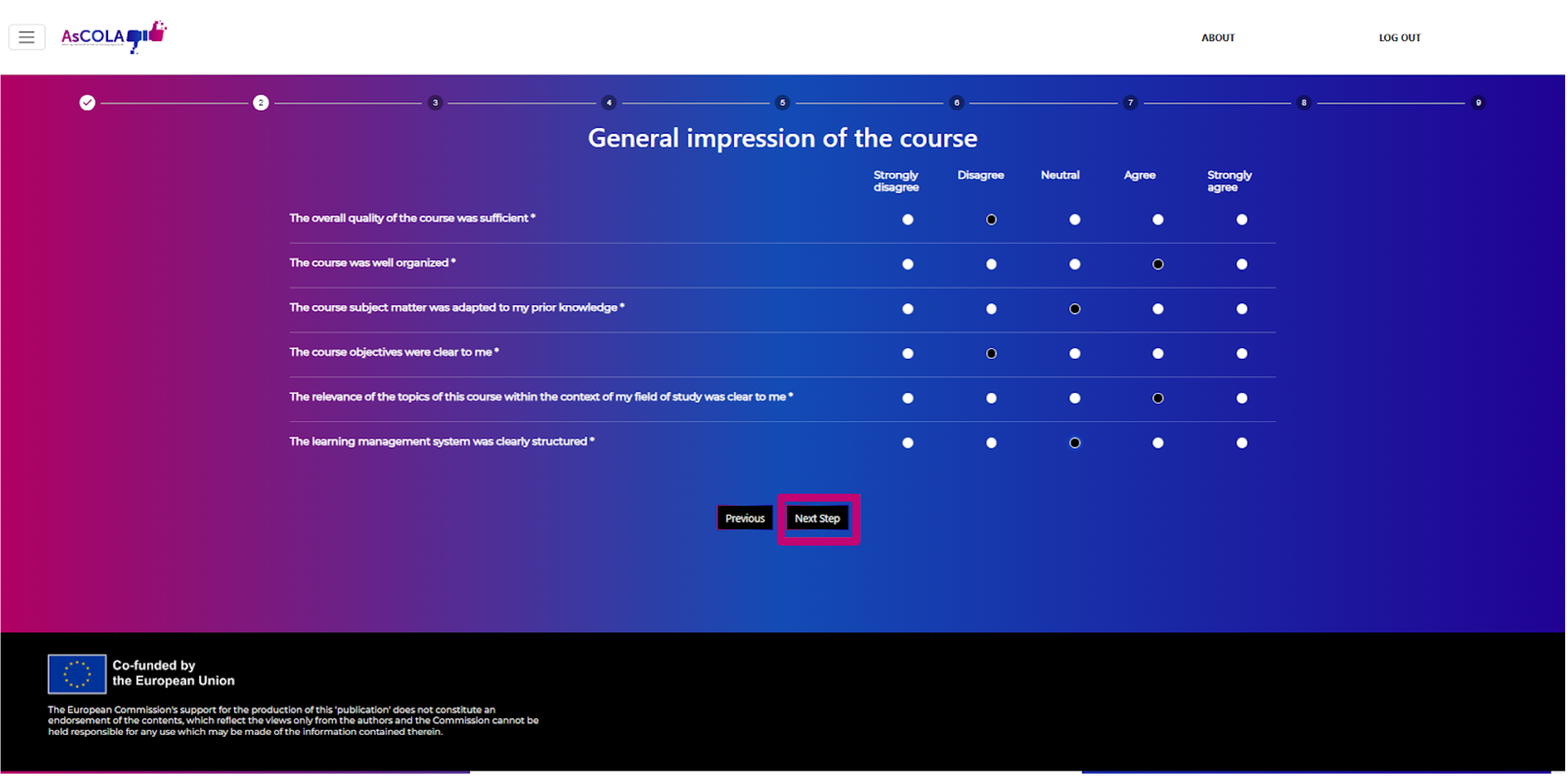
Note: You are required to fill out all questions marked with (*) before you can go to the next page.
Note: Questions with radio buttons (round bullets, left image) allow one answer; questions with checkboxes (square bullets, right image) allow for multiple answers.
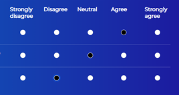 |
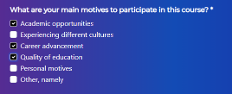 |
Any further explanations or comments can be left in the open comment fields per topic.
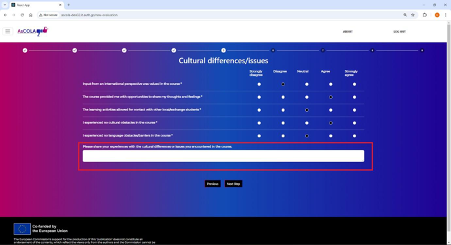
When you’ve filled out all questions from the survey, submit your evaluation by clicking on the ‘Submit’ button at the last step.
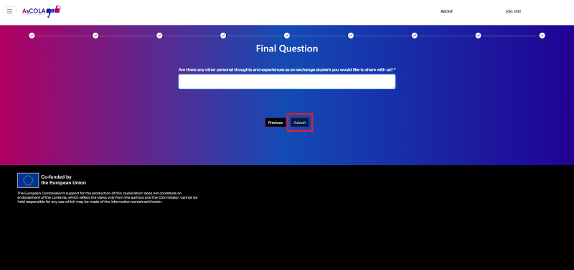
The submitted evaluations can be found by clicking on ‘My evaluations’ (at the end of the list) and can be edited or deleted there.
For staff
The AsCOLA course evaluation tool will enable staff members to collect and analyse Erasmus+ mobility students’ feedback of the courses taken while abroad. The course evaluations will be showcased through the EWP Dashboard.
Staff members can access the evaluations as long as their institution uses the EWP Dashboard for their OLAs, and the user has managing OLAs rights.
How to use results from course evaluations
Staff members looking to understand how to make the most out of the outcomes of the evaluation tool can find further insights in the following document (Turning Insights into Action: How to make effective use of the outcomes of the evaluation tool).
How to use the AsCOLA evaluation tool?
Please note that access to the Erasmus+ Dashboard is managed at Institutional level. If you are interested in accessing it, please refer to your International Relations Office (IRO) for further guidance.
How to log-in
Log into the EWP Dashboard via https://ewp-dashboard.eu/login and fill out your email address and password.
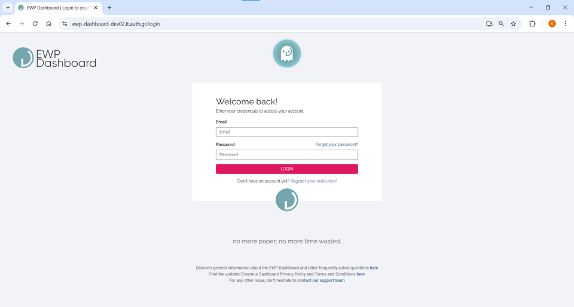
How to view all course evaluations
Go to the Course Evaluations tab via the menu on the left and select your preferred course.
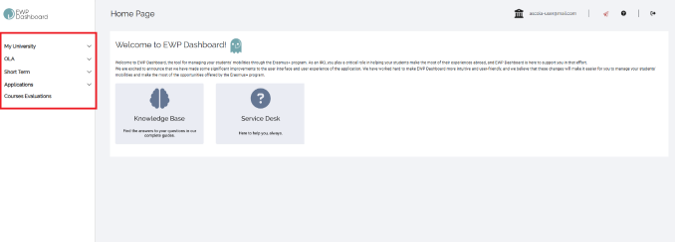
- To easily find a specific course, apply filters using the blue button in the top right corner.
- You can find courses via Course Code and/or Course Title.
Note: Course titles are inserted from OLA and appear as they have been stated by students. This may differ from the course catalogue.
View the evaluation data of the selected course
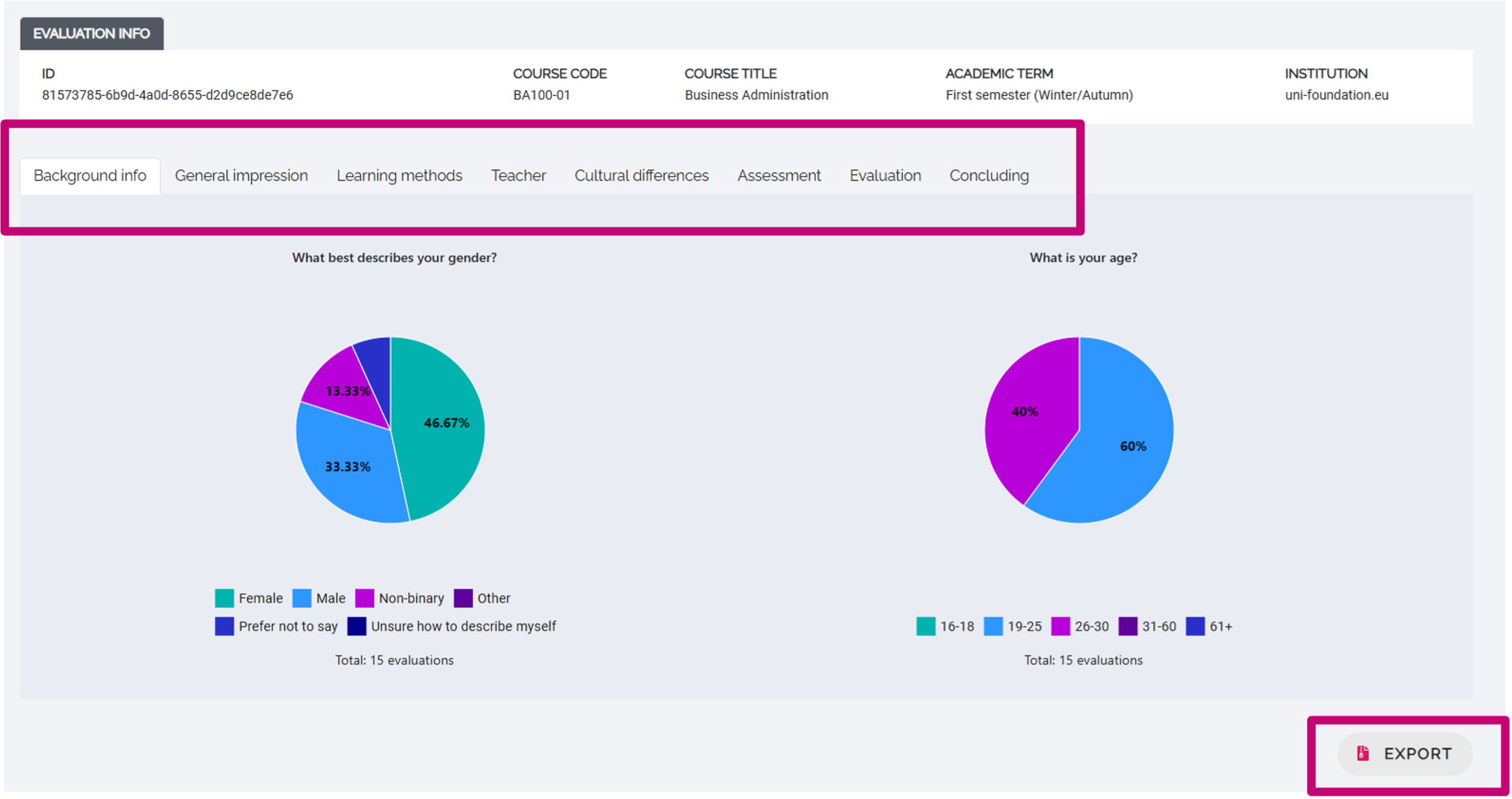
On the evaluation page, you can find information about the course/evaluation on top of the page.
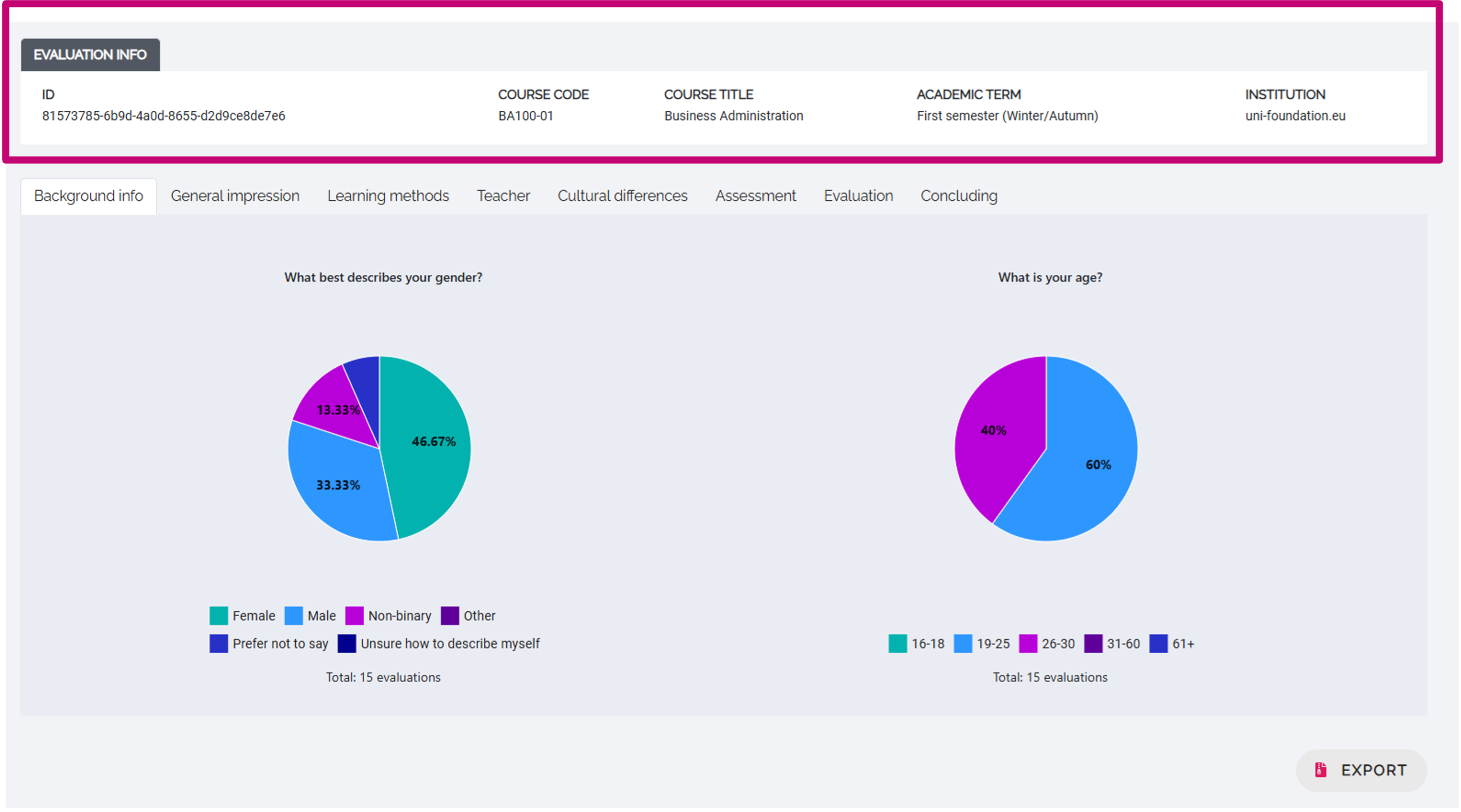
Data from the evaluation is collected per theme of the survey (background info, general impression, etc.). Click the tabs above the data to select and review a theme from the evaluation survey.
TIP: Don’t forget to scroll down on the pages to not miss any data; some results may take up more space than the screen allows for!
You can export all data from the evaluation at once by clicking the EXPORT-button in the bottom-right corner.
TIP: Want to find out more about how to interpret the data and translate it into practice, read our guide on how to make effective use of the outcomes of the evaluation tool.
For developers/ service providers
API specification: https://api.ascola.eu/swagger/index.html
Frequently Asked Questions
- Is it necessary to use the EWP Dashboard for OLA to use the AsCOLA tool or will it also be linked to OLA/LA solutions by 3rd party providers?
The project has also developed a relevant API, so as to allow 3rd party providers to link their software with the tool. However, it is up to the provider to implement the API.
- Does the course list in the AsCOLA tool contain all courses from all institutions or just the one receiving institution for the future/current exchange?
The course list contains all evaluated courses from all hosting institutions that have consented to make the evaluations visible
- (How) is this project linked to the EWP Course Catalogue?
The project is linked to OLA, which at some point will/might be linked to the EWP Course Catalogue.
- How does the AsCOLA tool work for students with several exchanges at different institutions with several Online Learning Agreements?
As long as any of the several host HEIs uses the tool for Evaluations, the student will be able to evaluate all courses
- Would students access the tool from OLA?
No, the AsCOLA tool is a standalone web application. Although indeed, the source of the courses is the OLA.
- How can HEIs add courses for evaluation to be available at the EWP Dashboard and at the AsCOLA tool for students?
Courses are automatically fed into the tool from OLA. So, you will see evaluations only for those courses that your incoming students have selected during their mobility.
- Will it be mandatory for HEIs and students to use AsCOLA?
The use of the AsCOLA tool will not be mandatory for either HEI or students.
- Will this evaluation replace the evaluation send to the student via Beneficiary Module?
The AsCOLA tool will not be replacing the Beneficiary Module questionnaire as it tackles different aspects and issues of the Erasmus+ mobility.
- Is it possible that the AsCOLA tool is also by our local students?
Since the questions are mostly tailor-made to reflect a mobility experience, it will not be relevant for local students.