# For students

<span>The AsCOLA course evaluation tool allows Erasmus+ students to assess the courses taken while on mobility. For the time being, course evaluations are only available for students whose Higher Education Institution uses the</span> [Online Learning Agreement](https://learning-agreement.eu/)<span>. For more information, please contact the International Relations Office of your Institution.</span>

# How to log in to the course evaluation platform

Go to [https://ascola.eu/login](https://eur03.safelinks.protection.outlook.com/?url=https%3A%2F%2Fascola.eu%2Flogin&data=05%7C02%7Cvanleeuwen%40risbo.eur.nl%7Cfb73973624a247b686c108dd348fde9a%7C715902d6f63e4b8d929b4bb170bad492%7C0%7C0%7C638724514740709954%7CUnknown%7CTWFpbGZsb3d8eyJFbXB0eU1hcGkiOnRydWUsIlYiOiIwLjAuMDAwMCIsIlAiOiJXaW4zMiIsIkFOIjoiTWFpbCIsIldUIjoyfQ%3D%3D%7C0%7C%7C%7C&sdata=0RCuaRw9V78uTsO9w3shLAxifewtey1ElUNR6UZUHMU%3D&reserved=0). You will be directed to the homepage of the tool where you can log-in.

[![AsCOLA_students_login_1.png](https://bookstack.uni-foundation.eu/uploads/images/gallery/2026-06/scaled-1680-/ascola-students-login-1.png)](https://bookstack.uni-foundation.eu/uploads/images/gallery/2026-06/ascola-students-login-1.png)

Is it your first time logging in? Log in with your MyAcademic ID or create one by first selecting your Institution and then filling out your login.

[![AsCOLA_students_login_2.png](https://bookstack.uni-foundation.eu/uploads/images/gallery/2026-06/scaled-1680-/ascola-students-login-2.png)](https://bookstack.uni-foundation.eu/uploads/images/gallery/2026-06/ascola-students-login-2.png)

Complete the **registration steps** as presented on the screen. This includes providing background information about yourself, as part of the registration.

[![AsCOLA_students_login_3.png](https://bookstack.uni-foundation.eu/uploads/images/gallery/2026-06/scaled-1680-/ascola-students-login-3.png)](https://bookstack.uni-foundation.eu/uploads/images/gallery/2026-06/ascola-students-login-3.png)

# How to navigate the tool

*This information requires you to have already logged in the AsCOLA tool. If you haven't yet, please check the section "How to log in"*

Once you are registered, you’re redirected to ‘My evaluations’. Here you can find the **list of courses** of your finalized Online Learning Agreement(s).

You can also **browse through existing evaluations** of exchange courses to help you decide on the courses you want to apply for. **Note**: only exchange courses from Higher Education Institutions that agreed to display their courses in the tool are visible.

Use the top left menu to switch between:

1. Your **own evaluations**, to create and edit;
2. And **all evaluations**, to browse through evaluations from courses you want to apply for.

[![AsCOLA_students_navigate_1.png](https://bookstack.uni-foundation.eu/uploads/images/gallery/2026-06/scaled-1680-/ascola-students-navigate-1.png)](https://bookstack.uni-foundation.eu/uploads/images/gallery/2026-06/ascola-students-navigate-1.png)

## How to browse through course evaluations 

1. In the top left corner, choose “**all evaluations**”.
2. **Find specific courses** by entering the exact course title or the course code (be sure to switch to ‘search by course code’ using the button below). **Note:** not all Higher Education Institutions will provide access to their evaluations, it is therefore possible you won’t be able to find certain courses in the list.

**Note:** Not all HEIs allow their evaluations to be visible through this tool.

[![AsCOLA_students_navigate_2.png](https://bookstack.uni-foundation.eu/uploads/images/gallery/2026-06/scaled-1680-/ascola-students-navigate-2.png)](https://bookstack.uni-foundation.eu/uploads/images/gallery/2026-06/ascola-students-navigate-2.png)

- Select a course you want to view the evaluation data of and click on the course.
- You are now able to see the evaluation results. The evaluation results are presented per theme in a list.

[![AsCOLA_students_navigate_3.png](https://bookstack.uni-foundation.eu/uploads/images/gallery/2026-06/scaled-1680-/ascola-students-navigate-3.png)](https://bookstack.uni-foundation.eu/uploads/images/gallery/2026-06/ascola-students-navigate-3.png)

1. Click on a **theme bar** to open the results.  
    **TIP**: Be sure to scroll all the way down to not miss anything.
2. All outcomes **per statement, per topic** are presented here. Statements are answered with 5 different answer options (see corresponding colors).
3. The **numbers in the bars** show the number of students that chose this answer option.

[![AsCOLA_students_navigate_4.png](https://bookstack.uni-foundation.eu/uploads/images/gallery/2026-06/scaled-1680-/ascola-students-navigate-4.png)](https://bookstack.uni-foundation.eu/uploads/images/gallery/2026-06/ascola-students-navigate-4.png)

# How to provide feedback about your OLA courses (create, edit and delete evaluations)

Fill out the evaluations for the courses you took part in during your exchange via the ‘**my evaluations page**’.

[![AsCOLA_students_navigate_1.png](https://bookstack.uni-foundation.eu/uploads/images/gallery/2026-06/scaled-1680-/ascola-students-navigate-1.png)](https://bookstack.uni-foundation.eu/uploads/images/gallery/2026-06/ascola-students-navigate-1.png)

1. You can create a **new evaluation** by clicking the ‘add’ icon next to the course title.
2. You can **edit** previously submitted evaluations by clicking the ‘edit’ icon or **delete** them by clicking the ‘delete’ icon.

**Previously submitted** evaluations can be found at the bottom of the list/table.

[![AsCOLA_students_feedback_2.png](https://bookstack.uni-foundation.eu/uploads/images/gallery/2026-06/scaled-1680-/ascola-students-feedback-2.png)](https://bookstack.uni-foundation.eu/uploads/images/gallery/2026-06/ascola-students-feedback-2.png)

**Fill out the questions** per page and click ‘Next Step’. You can go back to the previous page by clicking ‘Previous’.

[![AsCOLA_students_feedback_3.png](https://bookstack.uni-foundation.eu/uploads/images/gallery/2026-06/scaled-1680-/ascola-students-feedback-3.png)](https://bookstack.uni-foundation.eu/uploads/images/gallery/2026-06/ascola-students-feedback-3.png)

**Note**: You are required to fill out all questions marked with (\*) before you can go to the next page.

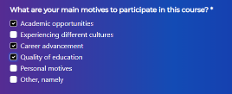
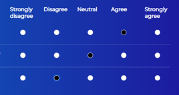
**Note**: Questions with radio buttons (round bullets, left image) allow one answer; questions with checkboxes (square bullets, right image) allow for multiple answers.

<table border="1" id="bkmrk--3" style="border-collapse: collapse; width: 100%;"><colgroup><col style="width: 50%;"></col><col style="width: 50%;"></col></colgroup><tbody><tr><td>[![AsCOLA_students_feedback_4.png](https://bookstack.uni-foundation.eu/uploads/images/gallery/2026-06/scaled-1680-/ascola-students-feedback-4.png)](https://bookstack.uni-foundation.eu/uploads/images/gallery/2026-06/ascola-students-feedback-4.png)</td><td>[![AsCOLA_students_feedback_5.png](https://bookstack.uni-foundation.eu/uploads/images/gallery/2026-06/scaled-1680-/ascola-students-feedback-5.png)](https://bookstack.uni-foundation.eu/uploads/images/gallery/2026-06/ascola-students-feedback-5.png)</td></tr></tbody></table>

Any further explanations or comments can be left in the **open comment fields** per topic.

[![AsCOLA_students_feedback_6.png](https://bookstack.uni-foundation.eu/uploads/images/gallery/2026-06/scaled-1680-/ascola-students-feedback-6.png)](https://bookstack.uni-foundation.eu/uploads/images/gallery/2026-06/ascola-students-feedback-6.png)

When you’ve filled out all questions from the survey, **submit** your evaluation by clicking on the ‘Submit’ button at the last step.

[![AsCOLA_students_feedback_7.png](https://bookstack.uni-foundation.eu/uploads/images/gallery/2026-06/scaled-1680-/ascola-students-feedback-7.png)](https://bookstack.uni-foundation.eu/uploads/images/gallery/2026-06/ascola-students-feedback-7.png)

The **submitted evaluations** can be found by clicking on ‘My evaluations’ (at the end of the list) and can be edited or deleted there.