For students
The AsCOLA course evaluation tool allows Erasmus+ students to assess the courses taken while on mobility. For the time being, course evaluations are only available for students whose Higher Education Institution uses the Online Learning Agreement. For more information, please contact the International Relations Office of your Institution.
- How to log in to the course evaluation platform
- How to navigate the tool
- How to provide feedback about your OLA courses (create, edit and delete evaluations)
How to log in to the course evaluation platform
Go to https://ascola.eu/login. You will be directed to the homepage of the tool where you can log-in.
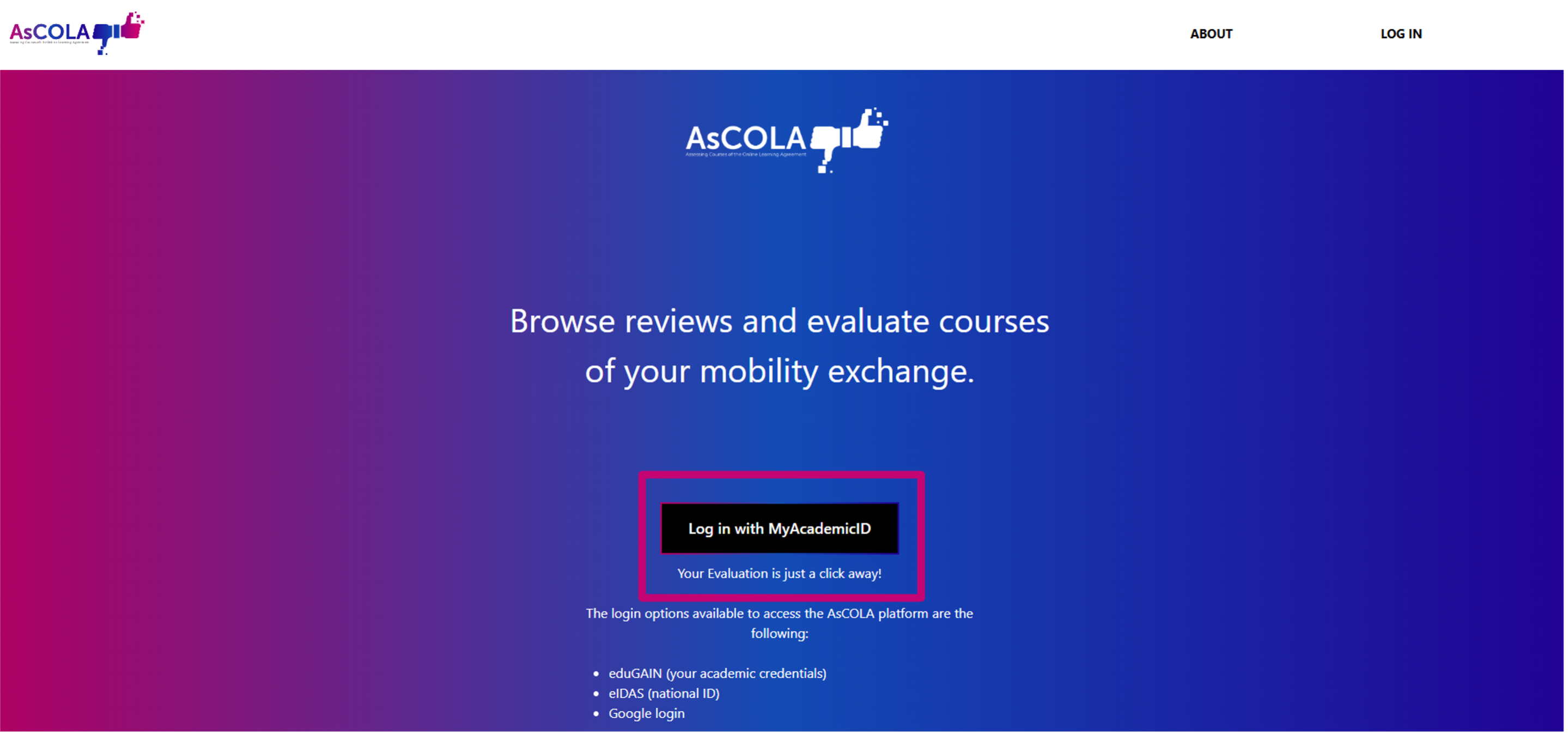
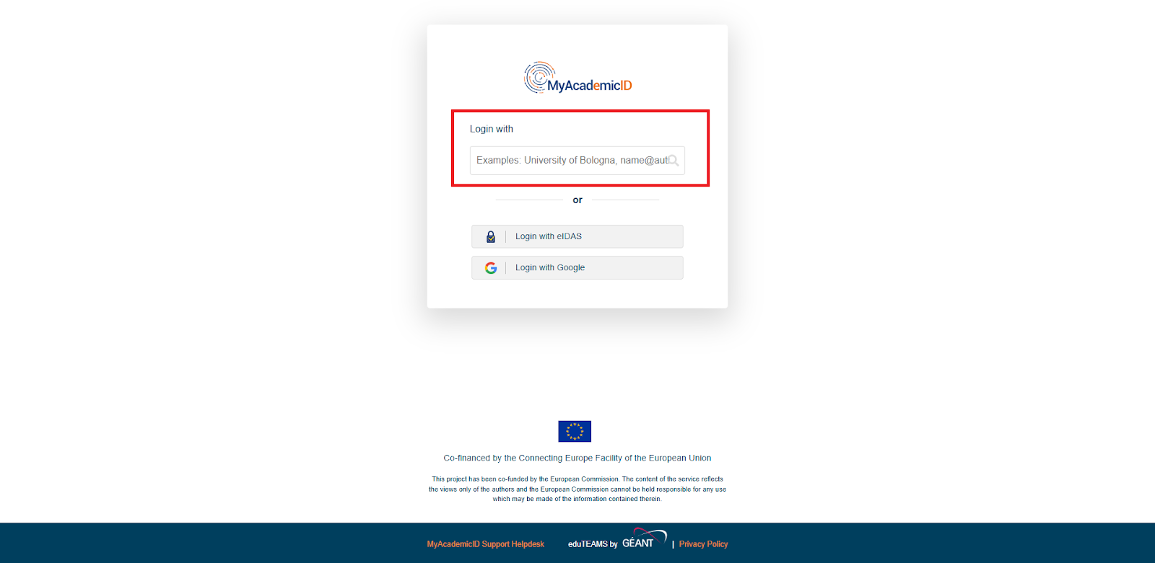
Is it your first time logging in? Log in with your MyAcademic ID or create one by first selecting your Institution and then filling out your login.
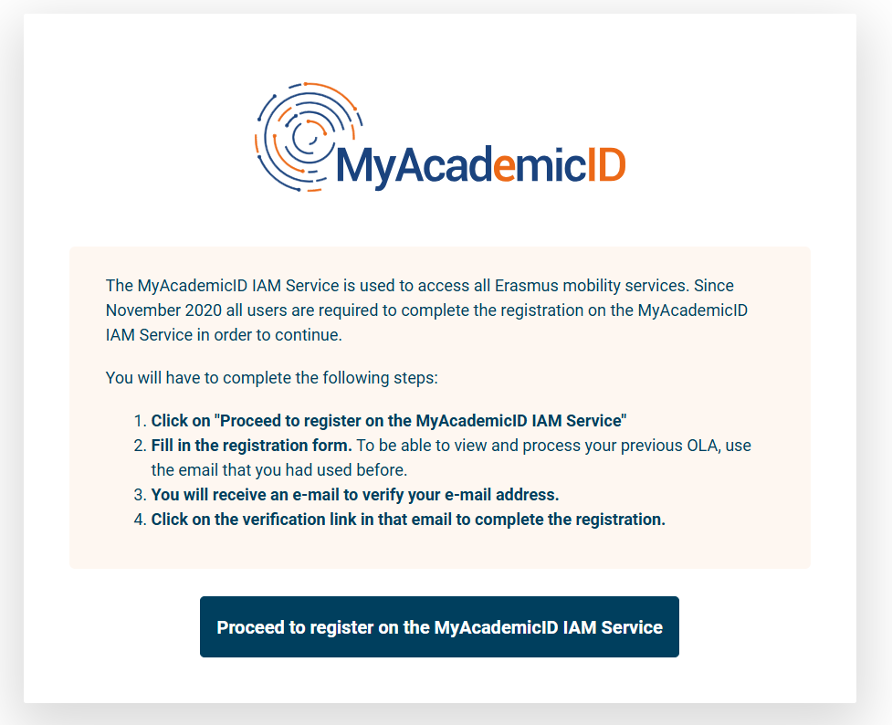
Complete the registration steps as presented on the screen. This includes providing background information about yourself, as part of the registration.
How to navigate the tool
This information requires you to have already logged in the AsCOLA tool. If you haven't yet, please check the section "How to log in"
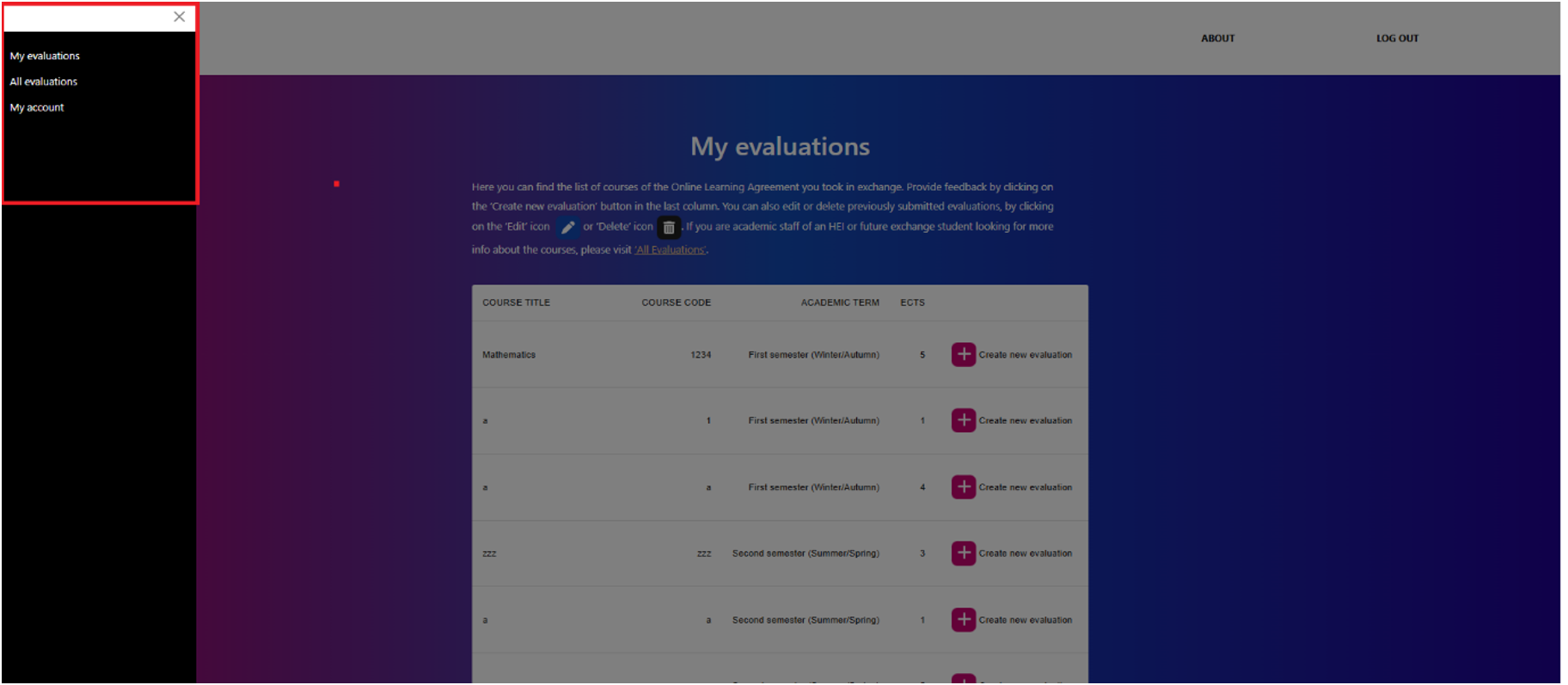
Once you are registered, you’re redirected to ‘My evaluations’. Here you can find the list of courses of your finalized Online Learning Agreement(s).
You can also browse through existing evaluations of exchange courses to help you decide on the courses you want to apply for. Note: only exchange courses from Higher Education Institutions that agreed to display their courses in the tool are visible.
Use the top left menu to switch between:
- Your own evaluations, to create and edit;
- And all evaluations, to browse through evaluations from courses you want to apply for.
How to browse through course evaluations
- In the top left corner, choose “all evaluations”.
- Find specific courses by entering the exact course title or the course code (be sure to switch to ‘search by course code’ using the button below). Note: not all Higher Education Institutions will provide access to their evaluations, it is therefore possible you won’t be able to find certain courses in the list.
Note: Not all HEIs allow their evaluations to be visible through this tool.
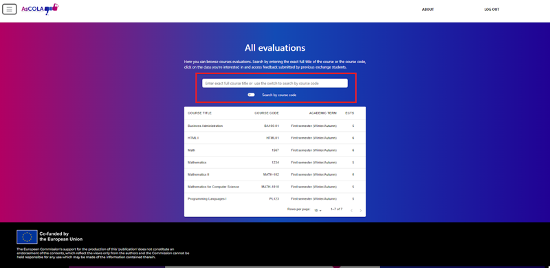
- Select a course you want to view the evaluation data of and click on the course.
- You are now able to see the evaluation results. The evaluation results are presented per theme in a list.
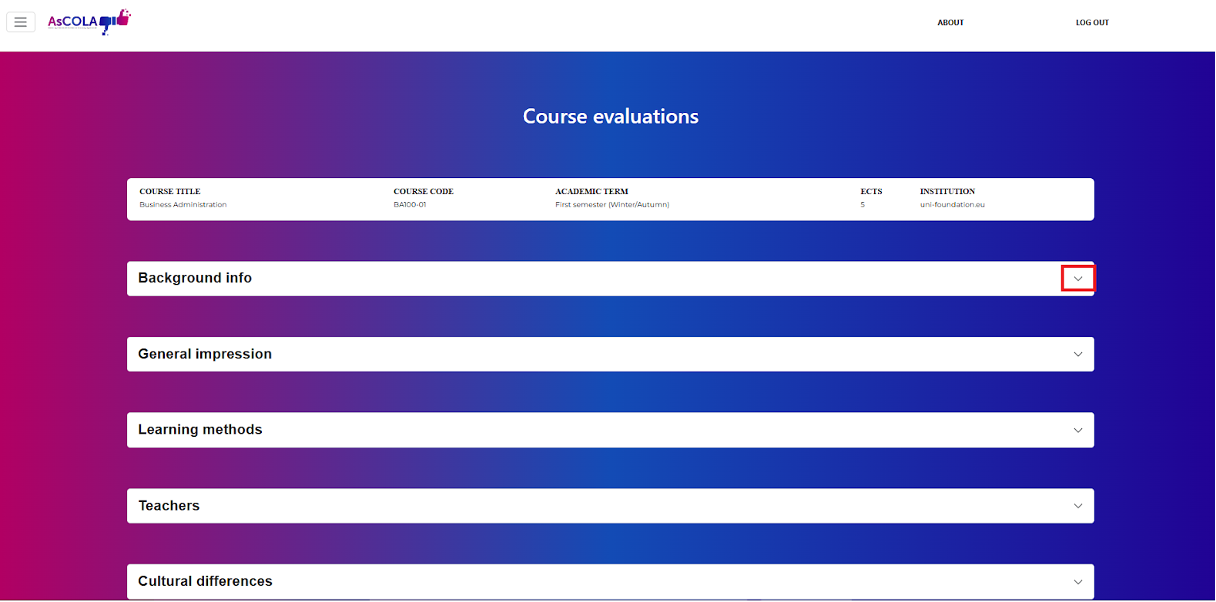
- Click on a theme bar to open the results.
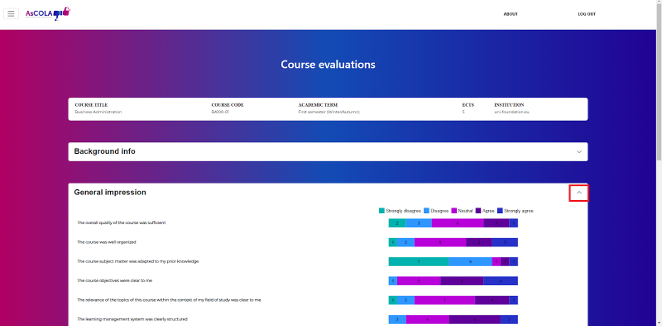
TIP: Be sure to scroll all the way down to not miss anything. - All outcomes per statement, per topic are presented here. Statements are answered with 5 different answer options (see corresponding colors).
- The numbers in the bars show the number of students that chose this answer option.
How to provide feedback about your OLA courses (create, edit and delete evaluations)
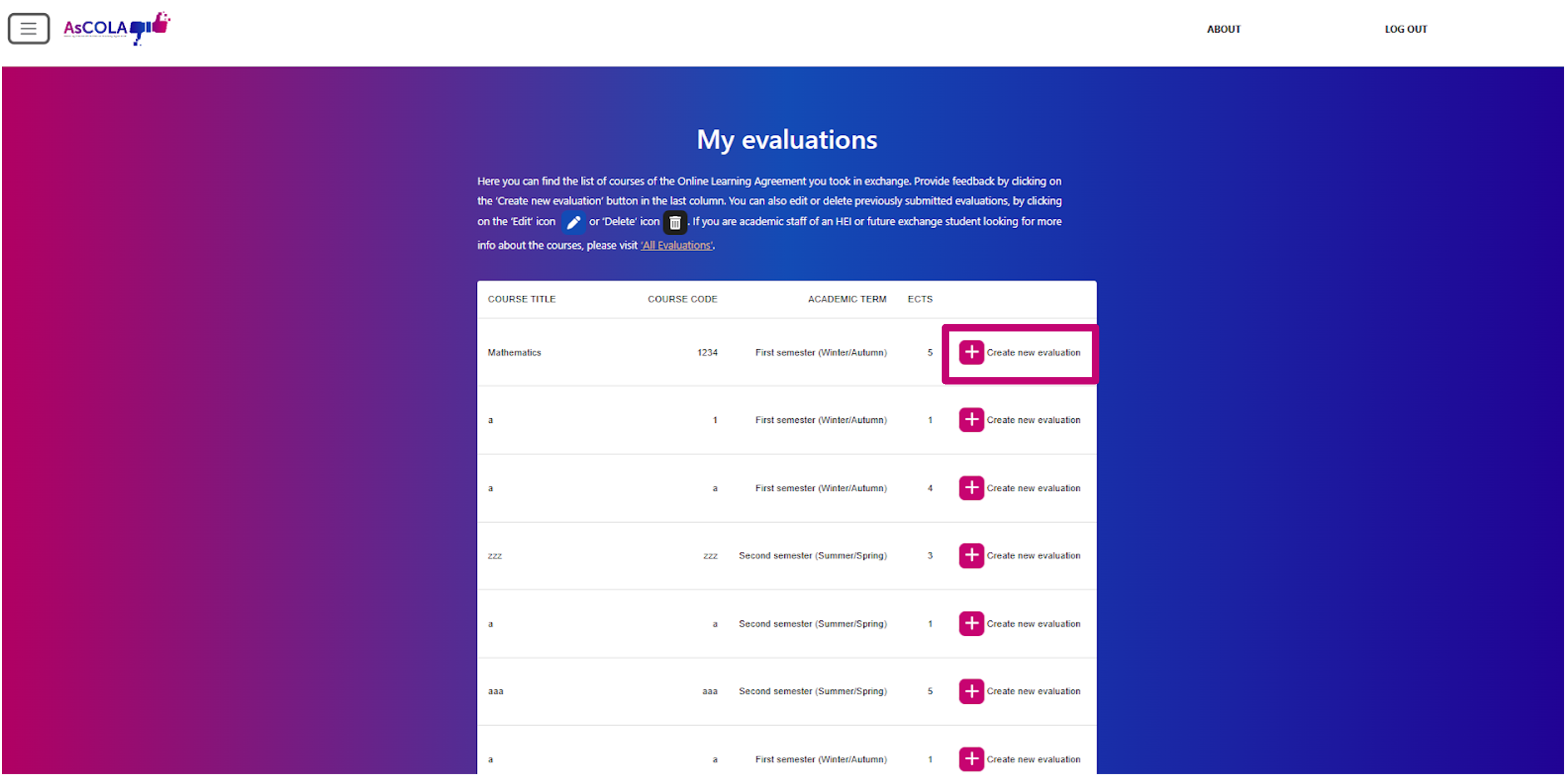
Fill out the evaluations for the courses you took part in during your exchange via the ‘my evaluations page’.
- You can create a new evaluation by clicking the ‘add’ icon next to the course title.
- You can edit previously submitted evaluations by clicking the ‘edit’ icon or delete them by clicking the ‘delete’ icon.
Previously submitted evaluations can be found at the bottom of the list/table.
Fill out the questions per page and click ‘Next Step’. You can go back to the previous page by clicking ‘Previous’.
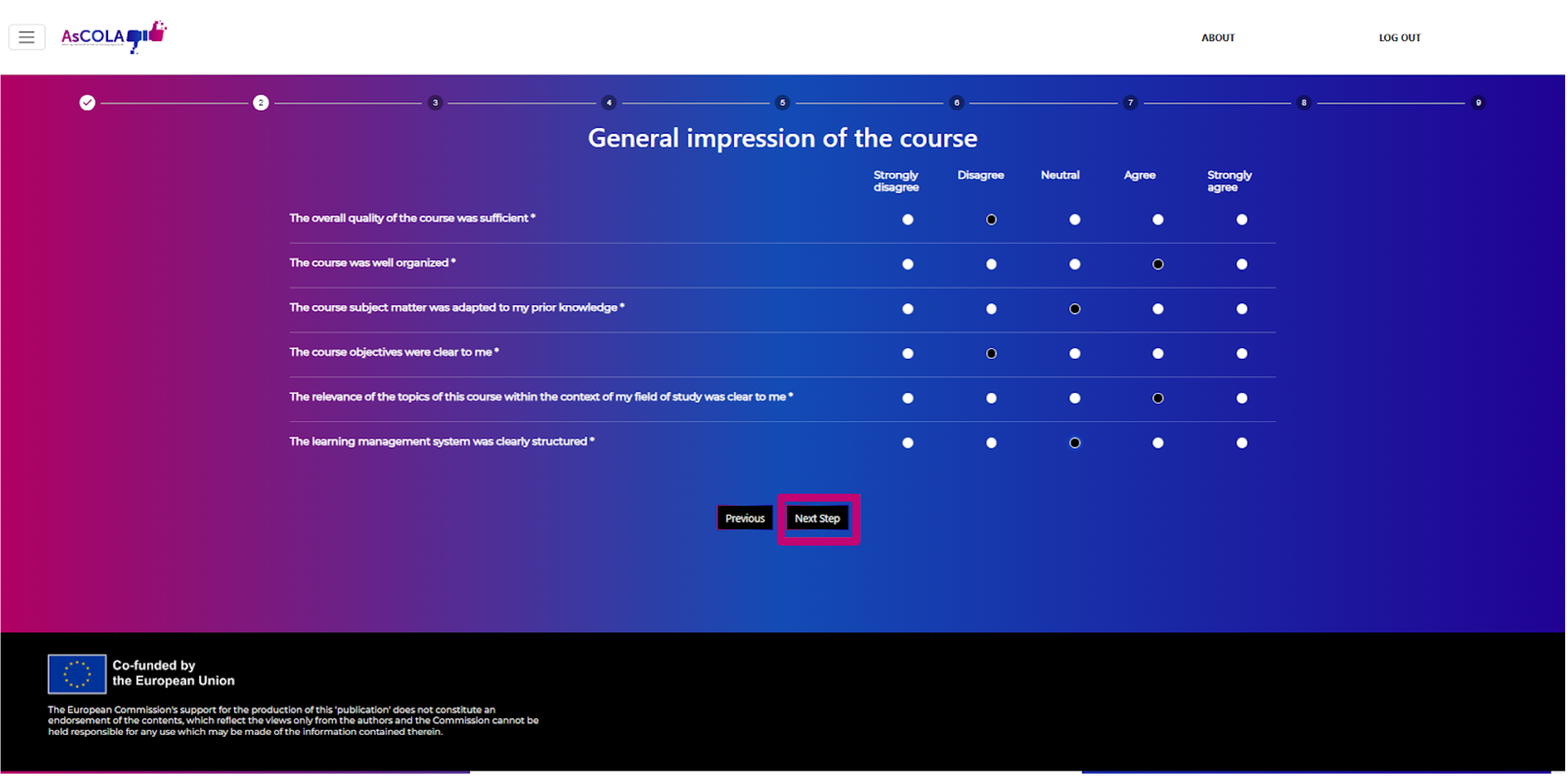
Note: You are required to fill out all questions marked with (*) before you can go to the next page.
Note: Questions with radio buttons (round bullets, left image) allow one answer; questions with checkboxes (square bullets, right image) allow for multiple answers.
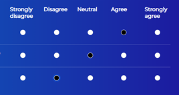 |
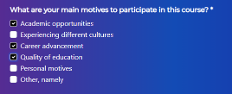 |
Any further explanations or comments can be left in the open comment fields per topic.
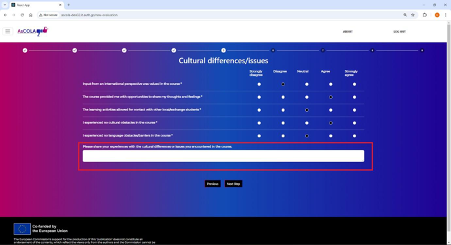
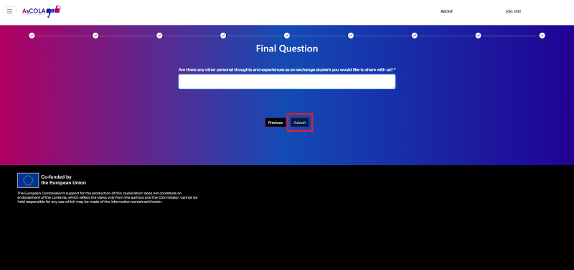
When you’ve filled out all questions from the survey, submit your evaluation by clicking on the ‘Submit’ button at the last step.
The submitted evaluations can be found by clicking on ‘My evaluations’ (at the end of the list) and can be edited or deleted there.